On this page
The short answerWhy CLI documentation driftsMap what the page promisesWrite commands that readers and tests can useRun the examples in a clean containerDecide how to compare outputHandle examples that cannot run unattendedRun CLI pages with DocsAlivePut checks in pull requests, releases and nightly runsUse a triage policy people can applyCLI documentation testing checklistWhat this does not replaceThe sources we checkedFAQThe short answer
Test CLI documentation by starting in a clean environment, following the published install command, running the first command and every complete example in page order, and checking exit codes and meaningful output. Compare documented flags and subcommands with --help, then review differences in context: a renamed flag can be a real docs bug, while a timestamp, missing credential or interactive prompt may need a different response.
Run focused checks on pull requests, test the release artifact before publication when you need a release gate, and repeat the checks on a schedule to catch drift. The broader docs testing guide covers executable examples across documentation; this guide focuses on the promises a command-line page makes to someone using a CLI.
DocsAlive extracts supported code examples, runs shell commands in page order, compares associated output and classifies findings. For a CLI written in a compiled language, install a release build and test its documented shell commands; compiled-language examples are not executed yet. Credential-dependent examples are classified rather than run with real keys. It tests code examples, not prose clarity.
Why CLI documentation drifts
A CLI page describes an interface that can change in several places at once. The install line names a package and a source. The first command assumes the executable is available and uses a particular subcommand. A flags table describes accepted names and defaults. Example sessions show both the command and what a reader should expect to see.
Any one of those promises can become stale. A flag can be renamed, a default can change, a subcommand can be removed, or output can be reformatted. An install command can stop pointing readers to the intended package or version. The executable may still work while the page describes an older interface.
These changes can interact. If an install line pulls a different version from the one the page describes, a flag may appear to be missing even though it exists in another release. If setup supplies a tool that the page never tells a reader to install, examples can pass in a test while a new reader gets stuck at the first command.
Treat the page as a sequence of promises, and record the version and environment used to check them. That makes a finding easier to reproduce and helps distinguish a documentation change from a test setup problem. For the wider pattern, see documentation drift.
Map what the page promises
Before automating a page, identify the commands a reader can copy, the state those commands create, and the results the page asks the reader to expect. Include the reference material around the examples, especially flags tables and help excerpts.
| Documentation element | What to check | Example of a difference to investigate |
|---|---|---|
| Install line | Run the documented installation in the intended clean environment | The package or install command no longer works |
| First command | Run it after installation with the stated prerequisites | The executable or documented subcommand is unavailable |
| Flags table | Compare flag names, arguments and stated defaults with the tested CLI | A flag was renamed or its default changed |
| Help text | Check top-level and relevant subcommand help | The page omits or misstates an option shown by the tested version |
| Example sessions | Run complete commands in their documented order | A later command relies on a file or setting the page never established |
| Exit codes | Check success and relevant failure cases | A script cannot distinguish success from a documented failure |
| Output blocks | Compare the result with what the page promises | Stable output changed, or an example shows an older result |
A single successful command does not cover the whole table. It may establish that installation and one example work, while leaving a flags table or another subcommand unchecked. Keep a list of pages and variants in scope, and record anything the run could not exercise.
Follow the reader's sequence
Run a page from its stated starting point. If a command creates a file that a later command reads, preserve that state for the later step. If the page describes two alternative paths, test each as an alternative rather than combining them into one sequence.
A clean starting point still matters. Begin each independent page without state left behind by another page, unless the documentation explicitly tells readers to carry it across. For a journey that spans pages, also test the complete journey; a separate page-level run does not prove that the transition between pages works.
Keep test setup visible. Installing a package before the page begins may be necessary for a focused check, but it can conceal an incomplete install instruction. Record what the test supplied and compare it with the prerequisites a reader sees. The quickstart testing guide goes deeper on ordered onboarding paths.
Compare flags and help with the page
Run --help for the top-level command and for each documented subcommand that exposes it. Compare the tested version's help with the flags table and examples: names, argument shapes, defaults and subcommand availability are all part of the reader's task.
The Command Line Interface Guidelines recommend displaying help for -h and --help, including on subcommands, and leading help with examples. Those recommendations make help a useful source to compare with the docs. They do not make either source automatically correct: when the two disagree, decide which behavior the released CLI is meant to support, then update the implementation or documentation.
Help output can also drift in harmless ways. A spacing change may not alter what a flag means. A changed default can alter a reader's result without changing the flag name. Review the substance of the difference instead of relying only on a text comparison.
Write commands that readers and tests can use
Clear boundaries between input and output help both a person following the page and a tool extracting examples. Use a complete command when the reader is meant to copy it, describe values the reader must supply, and make omissions visible.
The Google command-line syntax guidance recommends a click-to-copy command that does not need editing after copying, where possible. It also recommends formatting and describing placeholder variables, and using separate input and output blocks when instructions contain both. If a command requires a reader-specific value, explain the placeholder immediately after the command rather than implying that the literal placeholder will work.
For a one-line command, the prompt is optional in that guidance. When a document mixes one-line and multiline commands, it recommends using prompts consistently. A session can make the distinction visible:
$ mytool --help
Usage: mytool [OPTIONS] COMMAND
Here, $ marks input and the following line is shown output. A reader should not copy the prompt as part of the command. When using separate blocks, introduce the output as output so it is not mistaken for another command.
Show only output that helps
Output is useful when it tells readers what to verify or gives them a value needed for a later step. It can also become a maintenance burden if the page reproduces incidental details that change without affecting the task. The Google guidance says output is not required for every command and suggests introductions such as “The output is similar to the following” for a representative result.
Use that phrase deliberately. Tell the reader which parts can vary and which part matters. If a result must match exactly for the next step, say so. If an output block is illustrative, do not make a test treat every incidental character as a contract.
When omitting output lines, put three periods on a line by themselves:
First relevant line
...
Last relevant line
The omission tells the reader that the block is incomplete. Do not treat the dots as literal expected output. If a test cannot interpret an omitted section, compare the relevant complete portions separately or record that the block needs review.
Make success and failure observable
Check the exit status as well as visible output. The CLI guidelines recommend zero on success and nonzero on failure because scripts use exit codes to determine the result. A command that prints a reassuring message but returns a failure status can break automation; a command that reports success after an error can be equally misleading.
The same guidelines recommend primary command output on stdout and messages such as errors on stderr. When a page promises output, decide which stream is part of that promise. For example, capture the streams separately in a controlled test when the distinction matters:
mytool status >stdout.txt 2>stderr.txt
Inspect both files and the command's exit status. Do not assume that an empty stdout means failure: a successful command may intentionally be quiet. Conversely, a state-changing command should give the reader enough information to understand what happened. The CLI guidelines discuss brief success output, quiet operation and telling users when state changes.
Run the examples in a clean container
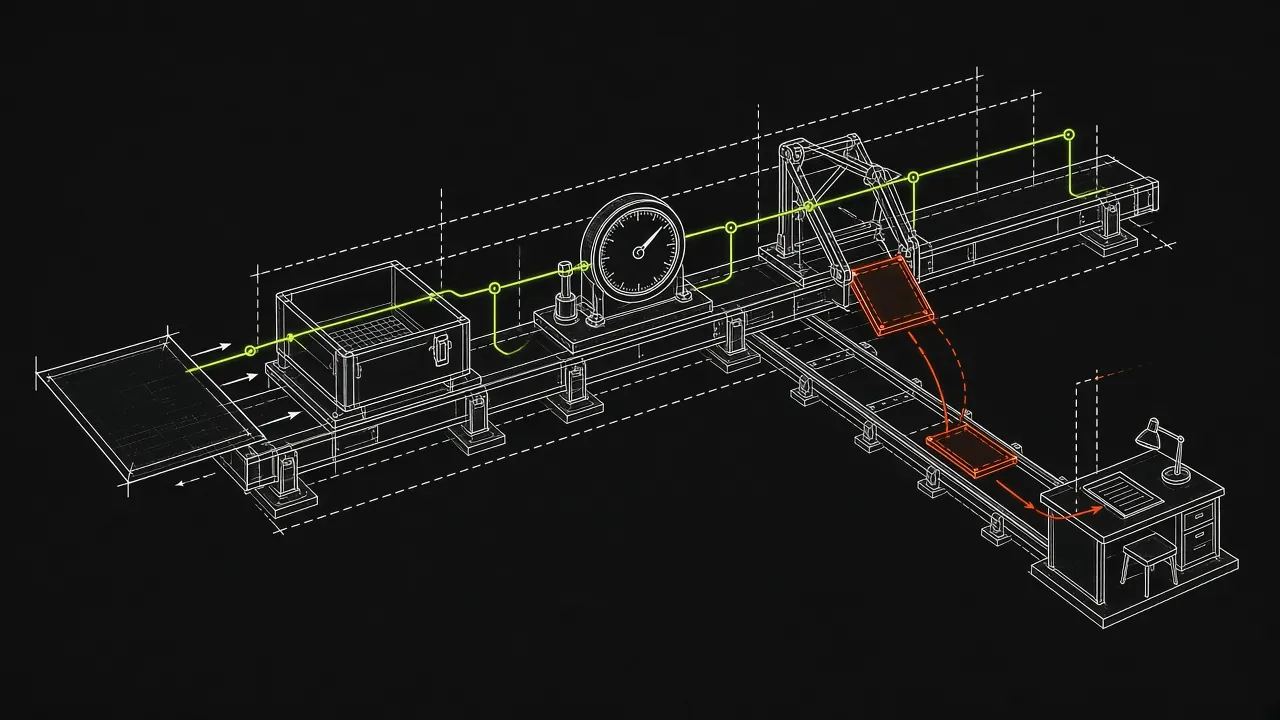
A clean environment helps reveal an executable, file, setting or dependency that exists on a maintainer's machine but is absent for a new reader. Start with an image that has the tools needed for the documented install path, then run the install and examples in the same order a reader would.
The following shows a container invocation shape. Replace IMAGE with an image appropriate for the CLI and run the documented commands inside it:
docker run --rm --read-only --cap-drop ALL \
  --user 1000:1000 --memory 512m IMAGE
The Docker run reference documents these options: --rm removes the container and its associated anonymous volumes on exit, --read-only makes the root filesystem read-only, --cap-drop drops Linux capabilities, --user selects a user, and --memory sets a memory limit. The image must be prepared for the command it runs and for a read-only root filesystem.
A clean container is a starting point, not a substitute for deciding what the test should cover. Record the image, CLI version, install source and any setup or fixtures supplied outside the page. If installation needs network access, an offline run cannot establish that the install path works. If a command expects a host tool or resource that is absent from the container, investigate that prerequisite before calling the page wrong.
Test the version readers receive
A checkout test and a release test answer different questions. Installing from the checkout can reveal whether a proposed change works with the docs in that checkout. Testing a built release artifact checks the artifact intended for readers. Testing the published install path checks the path after publication.
For each run, record which of those targets was used. A passing checkout test does not by itself prove that a published install command points to the intended release. See the SDK documentation testing guide for the related problem of checking examples against a release.
Decide how to compare output
Choose the comparison from the promise the page makes. Exact comparison is appropriate when the displayed value or formatting is stable and meaningful. A normalized or narrower comparison is appropriate when the page says that fields can vary.
| Output promise | Comparison | What to retain |
|---|---|---|
| A stable value readers must verify | Exact comparison | The value and enough context to identify it |
| A representative result with variable timestamps | Compare stable fields after accounting for timestamps | The behavior and values the page asks readers to check |
| A list whose order can vary | Compare the relevant contents without treating order as significant | Missing or unexpected meaningful entries |
| An error example | Check exit status, stderr and the useful error content | Evidence that the documented failure is distinguishable |
| An intentionally quiet success | Check exit status and any documented state change | Evidence of success without requiring invented output |
| An excerpt with omitted lines | Compare the shown relevant portions | A clear record that the full output was not compared |
Normalization must be specific. Removing timestamps before comparison can make sense when timestamps are expected to change. Removing all lines that differ can hide a changed error or a missing result. Document each normalization rule and review it when the CLI's behavior changes.
A successful command with output from an older runtime may indicate stale documentation. A different timestamp, header or ordering can instead be expected variability. Preserve the actual and expected evidence so a reviewer can make that distinction.
Handle examples that cannot run unattended
Not every command is safe or meaningful in the same automated environment. Mark the intent of these examples in the documentation and record the coverage gap in the test report. Where the CLI supports an appropriate non-interactive or dry-run mode, a separate example using that mode can make part of the behavior testable.
| Case | Treatment | Question for review |
|---|---|---|
| Interactive prompt or TTY requirement | Identify it and use a supported non-interactive path where appropriate | Does the unattended check cover the behavior the page promises? |
| Long-running server or watcher | Mark it as long-running and test an appropriate bounded path separately | How will the test know the example reached the intended state? |
| Destructive command | Avoid running it against valuable state; use an isolated target or supported dry run | What state would the real command change? |
| Credentials | Record that the credential-dependent action was not executed | Is a separate authorized check needed? |
| External network dependency | Keep the failure evidence and investigate the service and environment | Did the page fail, or was the dependency unavailable? |
| Host tool or resource | Document or supply the prerequisite for the relevant test | Would a reader know it is required? |
| Fixture or earlier context | Provide the documented fixture or test the surrounding sequence | Is the dependency explained to the reader? |
| Placeholder or intentional fragment | Label it as illustrative or incomplete | Can a reader distinguish it from a copyable command? |
A timeout is a result to investigate, not proof that the docs are wrong. An interactive command may be waiting for input; a server may be running as designed; an external service may be unavailable. Keep the command, environment and reason with the finding so someone can determine the cause.
Do not place real credentials in documentation or treat a placeholder as a working key. DocsAlive classifies examples that need credentials; it does not execute them with real keys, including customer-provided test credentials. Interactive, TTY-dependent, graphical, destructive or long-running commands can time out or be classified, so they need a deliberate separate test strategy.
Run CLI pages with DocsAlive
The CLI accepts a local directory or Git URL as the scan target. Without --execute, it extracts and plans rather than executing examples. A focused scan can select CLI pages, supply setup at the start of each page's container, and write a report:
docsalive scan . --execute \
  --include "docs/cli*" \
  --setup "pip install -q ." \
  --out out
This example installs the current checkout with the stated setup command. Use it only when that matches the project and version you intend to test. Change the include glob to match your pages, and review the documented install line separately so setup does not hide an omission. --include and --setup are repeatable; the CLI reference lists the available options.
The pipeline extracts fenced blocks and an output block shown immediately after a block. It keeps blocks in page order so later snippets can use earlier state, and chooses one variant from each tab group. Bash, sh, shell and console blocks are executed. In a console block, lines beginning with $ are treated as commands and subsequent lines as shown output. Other tab variants need separate coverage.
Each page gets a fresh container with an unprivileged user, a read-only root filesystem, dropped Linux capabilities, no privilege escalation and resource limits. The default image includes Python 3.12 and Node 20; another tool may need a different image or an installation supplied through setup. --no-network disables container network access, and the default step timeout is 60 seconds per code block. See how it works and the framework reference.
Shell commands can exercise an installed CLI release even when the CLI itself is written in a compiled language. Compiled-language examples are not executed yet. Simple TypeScript annotations can be stripped for execution, but full TypeScript and JSX are not judged. A report is evidence about the blocks and paths actually covered, not every example in every language.
Read status and category together
The output directory contains report.md and report.json. The JSON report includes a summary and a finding for each code block, with its page, line, status, category and reason. Review the findings reference alongside the evidence.
| Status | What it means |
|---|---|
pass |
Executed or syntax-checked; shown output matched when compared |
warn |
Ran, but output differed or a dependency emitted a deprecation warning |
fail |
Exited with an error; the category helps identify whether it is considered a docs bug |
skip |
Deliberately not run, with a reason |
DocsAlive classifies findings into 24 categories. Likely docs-bug categories include invalid syntax in a complete example, stale output and a documented package that does not exist. output-differs covers variability such as timestamps, headers or ordering and is not counted as a docs bug. Runtime errors and timeouts need review.
A passing status can represent a syntax check rather than execution. A failed block is not automatically a docs bug. Review skipped blocks, alternative tabs and credential-dependent examples before making a claim about coverage. The published results illustrate why triage matters: one run reported 520 failed blocks and flagged seven likely docs bugs.
Put checks in pull requests, releases and nightly runs
Use each run to answer a distinct question, and retain enough information to reproduce its result.
| When | Question | Response |
|---|---|---|
| Pull request | Does the proposed docs or CLI change break a covered path? | Run relevant pages and review likely bugs before merging |
| Release | Do the docs work with the artifact being shipped? | Test the intended artifact before publication if a release gate is needed |
| Nightly | Have dependencies or the install path drifted? | Run on the default branch and assign findings for review |
| Manual | Can a maintainer investigate a finding now? | Run the focused check with the recorded setup |
DocsAlive can re-test examples when a release is tagged against the version just shipped. That post-release signal cannot block a release that has already shipped. Use a separate check against the built artifact before publication when blocking is the goal.
A focused GitHub Actions workflow
This workflow checks selected paths on pull requests, runs nightly and allows manual dispatch. It assumes docsalive and jq are available in the runner environment and that the setup command suits the checkout.
name: CLI docs check

on:
  pull_request:
    paths:
      - "docs/cli*"
      - "src/**"
  schedule:
    - cron: "17 3 * * *"
  workflow_dispatch:

jobs:
  cli-docs:
    runs-on: ubuntu-latest
    steps:
      - uses: actions/checkout@v4
      - name: Run CLI examples
        run: |
          docsalive scan . --execute \
            --include "docs/cli*" \
            --setup "pip install -q ." \
            --out out
      - name: Check likely docs bugs
        run: |
          jq -e '.summary.likely_docs_bugs == 0' out/report.json
Replace the paths with the locations that affect your CLI docs. The jq step gates on the likely docs-bug count; review warnings, skips and findings needing review separately. A zero count does not mean every block ran or every external dependency was available.
GitHub's workflow event reference documents pull request path filters and manual dispatch. Scheduled workflows use UTC by default and run on the latest default-branch commit. GitHub notes that schedules can be delayed during high load and that scheduled workflows in public repositories are disabled after 60 days without repository activity. Monitor whether the scheduled check actually runs.
Use a triage policy people can apply
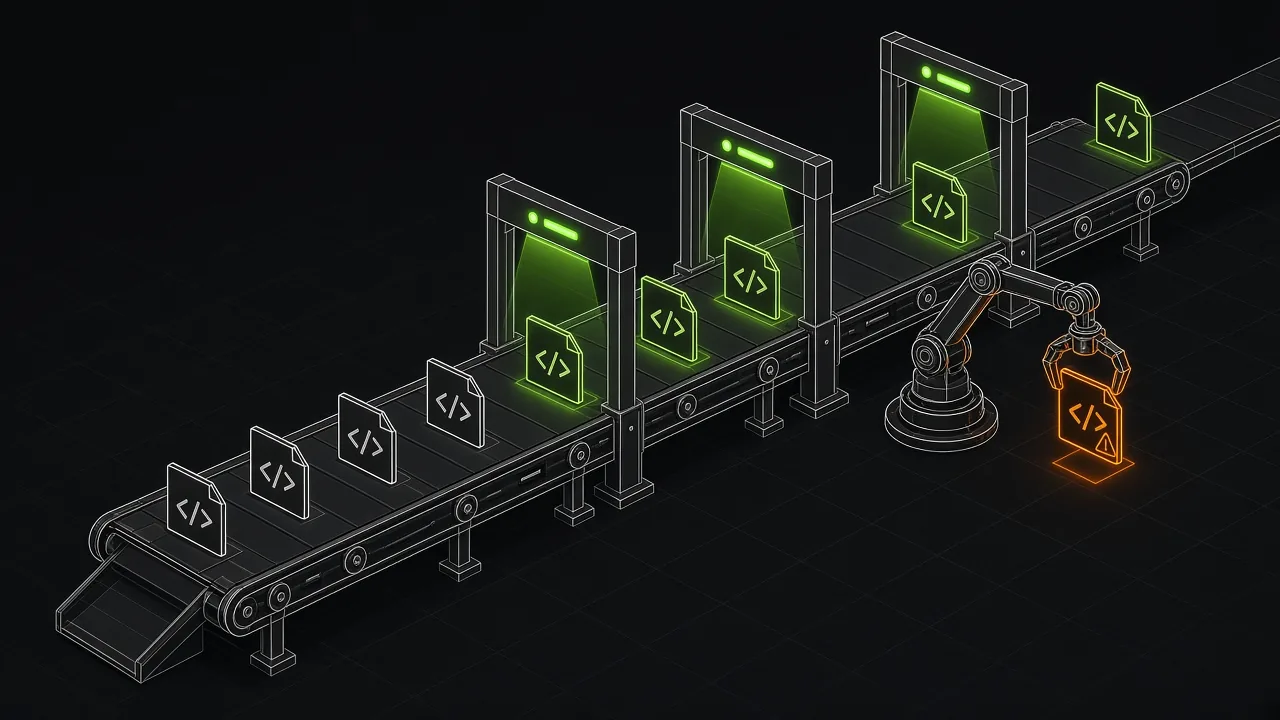
Agree on the response before the first failure. A gate should protect the reader's path while leaving uncertain results visible for investigation.
| Finding | Initial action | Decision |
|---|---|---|
| Install command or documented package fails | Reproduce against the intended version and source | Correct the instruction or identify an environment issue |
| Documented flag, default or subcommand differs | Compare the page, help and intended released behavior | Update the docs or investigate the CLI behavior |
| Complete command has invalid syntax | Confirm it is intended to be runnable | Fix the command or clearly mark the fragment |
| Stable documented output is stale | Compare actual and expected output | Update the block or clarify the intended result |
| Timestamp, header or ordering differs | Review the meaningful result | Normalize the known variable or revise the promise |
| Missing fixture, install step or host tool | Compare the page with test setup | Document the prerequisite or supply the fixture |
| Credential requirement | Record the untested action | Arrange a separate authorized check if needed |
| Timeout, runtime error or external network result | Preserve evidence and investigate | Determine whether the cause is docs, environment or dependency |
| Unsupported language or runner gap | Record the coverage gap | Use another suitable check |
Assign an owner and retain the tested version, setup, page and evidence. Do not discard uncertain results merely because they do not block the pull request. Equally, a deliberately illustrative placeholder should not be treated as proof of a broken install.
When a model provider is configured, DocsAlive can draft a small fix and re-run the fixed page, retaining the fix only if it passes. Without a configured provider, triage is deterministic. Fix pull requests open as drafts, and DocsAlive is designed not to merge them.
CLI documentation testing checklist
- [ ] List the CLI pages, subcommands and alternative paths to cover.
- [ ] Record the CLI version, install source, environment and required host tools.
- [ ] Start each independent page in a clean environment.
- [ ] Run the documented install line and first command.
- [ ] Compare flags, defaults and subcommands with the tested CLI's help.
- [ ] Run complete examples in page order and preserve required state.
- [ ] Check relevant exit codes, stdout and stderr.
- [ ] Compare meaningful output, documenting any normalization.
- [ ] Mark placeholders, omitted output, interactive commands and long-running examples.
- [ ] Record credentials, fixtures, external dependencies and unsupported paths as coverage gaps.
- [ ] Test the intended release artifact before publication when using a release gate.
- [ ] Run focused pull request and scheduled checks, retain reports and assign follow-up.
What this does not replace
Executing examples does not determine whether prose is clear, whether a flags table is easy to navigate, or whether the page contains the example a reader needs. Have a person follow the install-to-first-result path and review the explanations, prerequisites and decisions alongside the execution report.
Use prose and Markdown checks as complements. The free docs testing tools guide covers options, and the Vale vs markdownlint comparison discusses prose and Markdown linting. For other approaches to executable documentation checks, see the comparisons with Doc Detective and Promptless.
Plans for DocsAlive are listed on pricing: Open source is $0 per month for public OSI-licensed repositories, Team is $299 per month, Growth is $699 per month, and Scale starts at $1,499 per month. For a public repository you own or maintain, the health check provides a report from up to 40 docs pages, emailed within two business days.
The sources we checked
These sources were read on November 5, 2026.
| Source | What it covers |
|---|---|
| Command Line Interface Guidelines | Help, examples, exit codes, stdout, stderr, success output and dry runs |
| Google developer documentation style guide: Document command-line syntax | Copyable commands, prompts, placeholders, input and output blocks, and omitted output |
Docker Docs: docker container run |
Container removal, read-only roots, capabilities, user and memory options |
| GitHub Docs: Events that trigger workflows | Pull request path filters, scheduled workflows and manual dispatch |
FAQ
What should a CLI documentation test cover?
Run the install line, first command and complete examples in order. Compare documented flags and subcommands with help, check relevant exit codes, and compare meaningful output. Record paths that require credentials, interaction or resources the test does not provide.
Should CLI output match the documentation exactly?
Use an exact comparison when the page promises stable, meaningful output. For representative output, identify variable fields such as timestamps or ordering and compare the stable behavior. Keep normalization narrow enough to reveal a real change.
How do I test an interactive or destructive command?
Mark the example's requirements and avoid running destructive operations against valuable state. Where supported, use an appropriate non-interactive or dry-run path, and record what that check does and does not cover.
Can DocsAlive test a CLI written in a compiled language?
It can run documented shell commands against an installed release build supplied through setup. It does not execute compiled-language examples yet. Record the release build and setup used so the result can be reproduced.
Can DocsAlive run commands that need credentials?
It classifies credential-dependent examples rather than executing them with real keys. Running them with customer-provided test credentials is not currently supported. Use a separate authorized check when the full flow needs verification.
Does a passing report prove the CLI documentation is complete?
No. A pass can describe execution or a syntax check, and some blocks or alternative paths may be skipped. Review coverage and findings, then have a person assess the prose, prerequisites and missing examples.